
How to schedule a sale on Shopify that starts and ends on its own
Schedule a Shopify sale so the discount and the announcement both start and end on time, without staying up to flip switches.
6 min read · Updated Oct 18, 2026
Guide
A sale, a first-order code and free shipping over $75, all at once. When you run more than one offer, the hard part is showing them without stacking popups or hiding all but one in a rotating banner. Here’s how to make the offers work together, and how to show them side by side.
Shopify sorts discounts into three classes: product discounts, order discounts and shipping discounts. In each discount’s Combinations section, select the classes it can combine with. When discounts can’t combine, Shopify applies the one that’s best for the customer’s cart.
A customer can use up to five product or order discount codes and one shipping discount code on the same order. See Discount combinations.
A common set that combines cleanly: an automatic order discount for the sale, a shipping discount for free shipping over an amount, and a first-order code, each set in Combinations to combine with the others.
In themes with an announcement bar, open Online Store → Edit theme, and in the Announcement bar section click Add Announcement for each offer, up to 12. Turn on Auto-rotate announcements and set Change slides every, or let shoppers move through them with the arrows. Each can link somewhere. See Add an announcement bar.
It’s free and on every page. But it shows one line at a time, so a shopper may only ever read the first, and a line of text can’t apply a code.
Theme sections can give each offer its own banner. They show where you place them, usually the home page, and push your products further down the page.
A popup shows one offer and covers the page until it’s closed. Several offers means several popups, or one popup crammed with all of them.
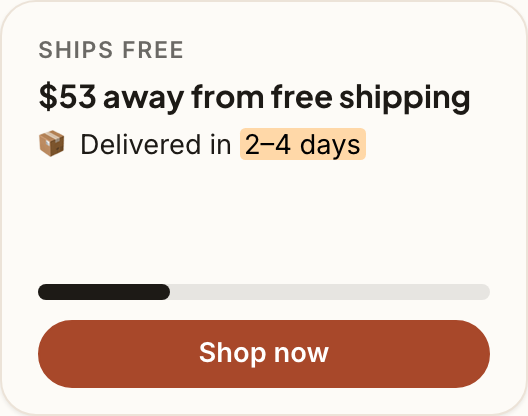
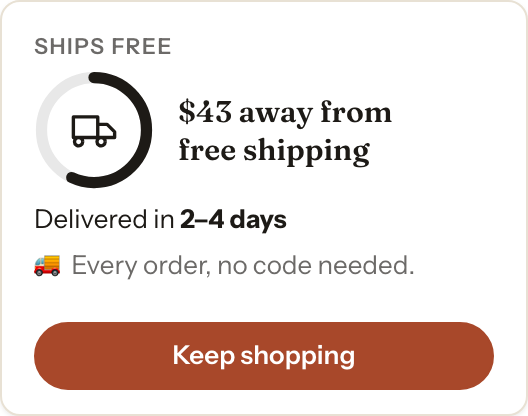
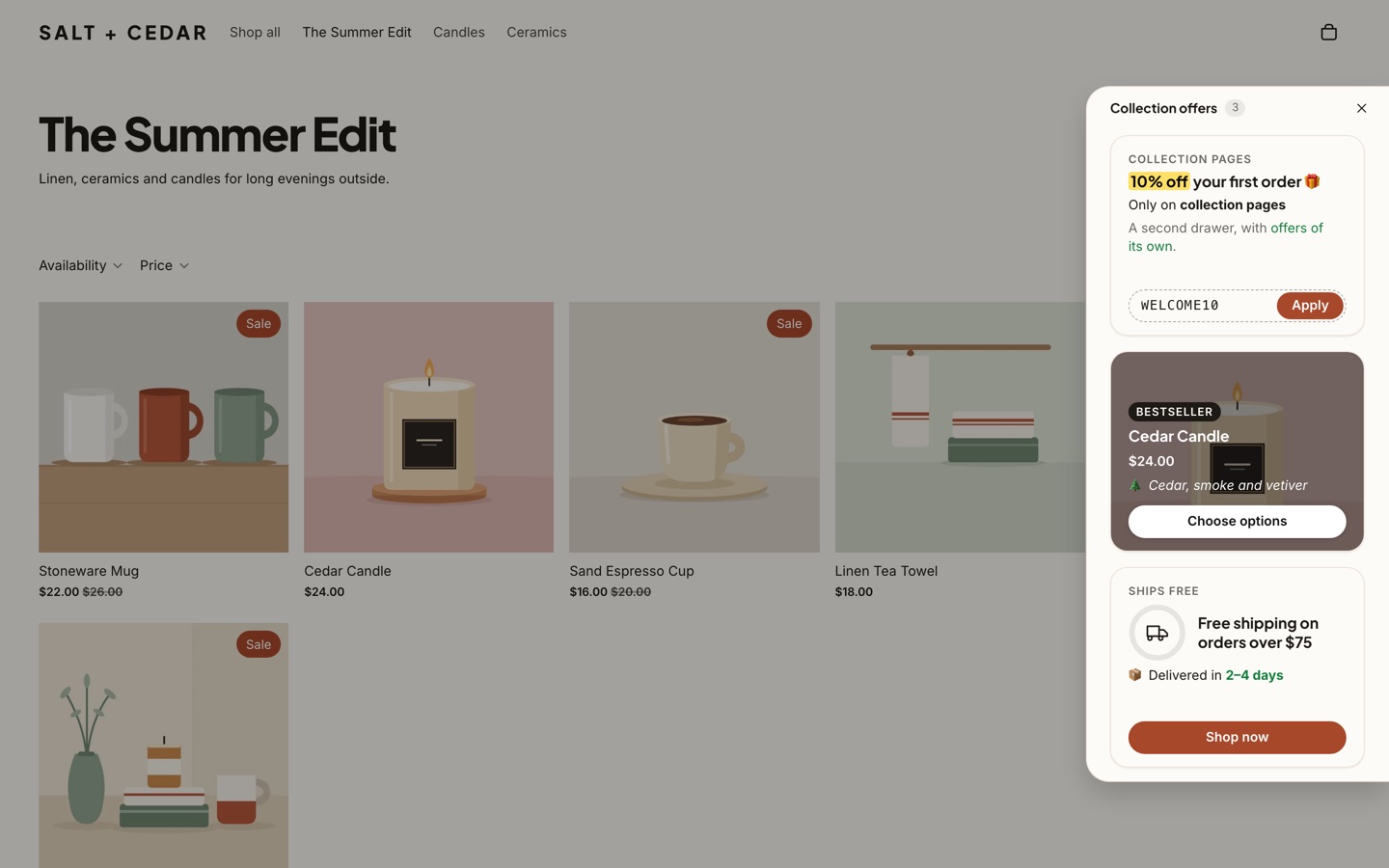
Each offer gets its own card, side by side in one slide-out drawer: the sale, a code shoppers apply in one tap, free shipping progress, a countdown, a product or a collection. A button waits at the edge of every page, and nothing covers the page until a shopper taps it. This is how Promo Drawer works.
The trade: shoppers see the offers when they open the drawer. A one-line announcement in your theme pairs well with it, pointing to the lead offer.
| Announcement bar | Banners | Popups | A drawer | |
|---|---|---|---|---|
| Offers in view together | One at a time | Where you place them | One per popup | Side by side |
| Covers the page | No | No; pushes it down | Yes | No, until opened |
| Apply a code in a tap | No | No | Depends on the app | Yes, with a code card |
| Different offers by page | No | Per section | Depends on the app | Yes, on Basic and Pro |
Install Promo Drawer from the Shopify App Store and turn on its app embed in your theme editor; Getting started walks through both. Then:
Or ask Shopify’s Sidekick: “Make me a drawer with 20% off everything, my code WELCOME10 for first orders, and free shipping over $75.” It builds the drawer for you to review and save. See Sidekick.
The Free plan has one drawer with 3 cards (announcement, image and follow) on your home page. Basic has up to 3 drawers with 5 cards each, adding codes, countdowns, free shipping, products and collections, plus targeting and scheduling. Pro has up to 20 drawers with 8 cards each and every card type. Both paid plans have a 30-day free trial.
Up to 3 cards on Free, 5 on Basic and 8 on Pro. On Basic and Pro you can also have more than one drawer, each for different pages.
The next card always peeks in at the edge, and the default layout shows how many cards there are, with arrows. Shoppers swipe or tap through.
Only if you allow it in each discount’s Combinations section in Shopify. Otherwise Shopify applies the one that’s best for the customer’s cart.
Nothing covers the page until a shopper taps the button. Once open, the Header and Minimal layouts dim the page behind them, and the Floating layout leaves your store usable underneath. See Design.
Schedule a Shopify sale so the discount and the announcement both start and end on time, without staying up to flip switches.
6 min read · Updated Oct 18, 2026
Set up free shipping over an amount in Shopify, then show shoppers how close their cart is, without covering the page.
8 min read · Updated Oct 18, 2026
Cyber Monday is November 30, 2026. Hand over from Black Friday, set up a Monday-only offer in Shopify, and keep the deadline honest.
6 min read · Updated Oct 18, 2026
Free to start. No code to install. A 30-day free trial on Basic and Pro.