How to add a countdown timer to Shopify without a popup
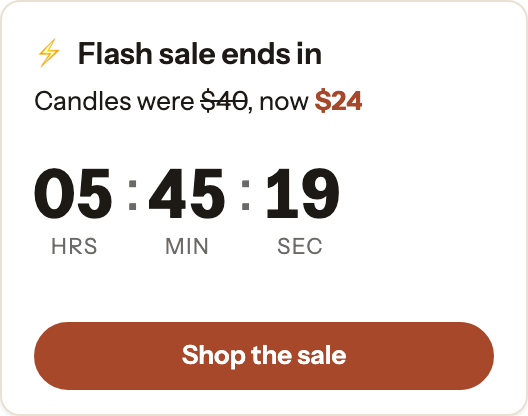
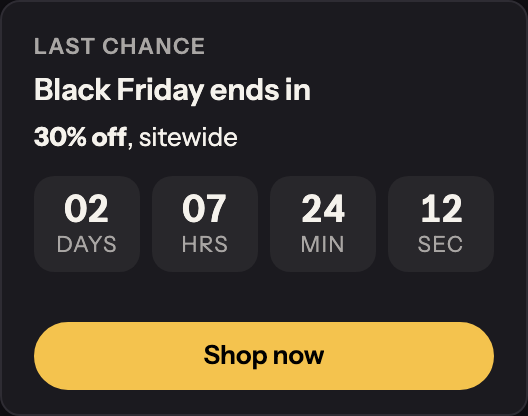
Three ways to add a countdown timer to a Shopify store, how to keep the deadline real, and one that never covers the page.
6 min read · Updated Oct 2, 2026
Guide
Every code a shopper has to find, remember and type is a step where they can get it wrong or give up. Here are three ways to get the discount onto the cart without typing, and when to use each.
Shopify can turn any discount code into a link. When a shopper opens it, the discount applies automatically to their checkout. To make one:
The link looks like yourstore.com/discount/SUMMER15. To send shoppers somewhere other than the home page, add a redirect: /discount/SUMMER15?redirect=/collections/sale.
It’s the best fit for emails, social posts, ads and printed QR codes, anywhere you control the link. Two limits from Shopify: a link carries one discount, and it works only while the discount is active. Shoppers who arrive any other way, from search or by typing your address, never see it.
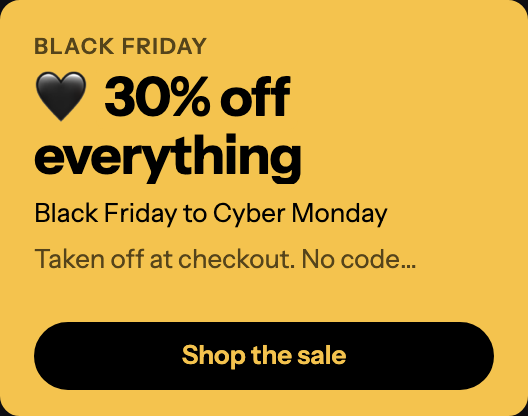
An automatic discount needs no code at all: it applies at checkout when the cart qualifies. Create one in Discounts and choose Automatic discount instead of a code.
It suits a store-wide sale everyone should get. The trade: with no code, there’s nothing to share in a post or an email, and nothing that tells you which channel a sale came from. If you run codes alongside it, check each discount’s Combinations settings so they stack the way you mean.
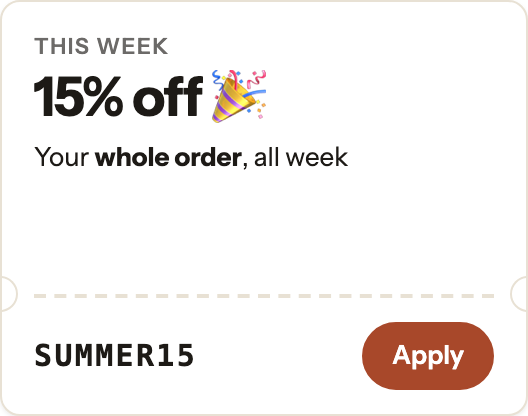
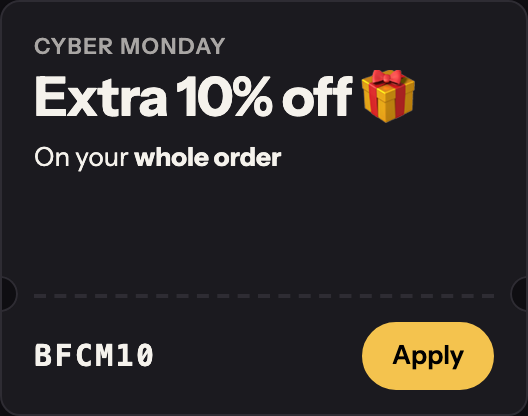
Show the code on the page with a button that applies it to the shopper’s cart. It reaches the shoppers the link misses: the ones who arrive from search, from a bookmark, or by typing your address. This is what PromoDrawer’s discount code card does, inside a slide-out drawer that never covers the page.
| Shareable link | Automatic discount | Apply button | |
|---|---|---|---|
| Shopper types a code | No | No | No |
| Reaches shoppers who | Open your link | Qualify at checkout | Visit your store |
| A code to share | Yes | No | Yes |
| Best for | Email, social, ads, QR | Store-wide sales | Search and direct visits |
They work together. Send the link in your email, and show the same code with an Apply button for everyone who comes in another way.
Install PromoDrawer from the Shopify App Store and turn on its app embed in your theme editor; Getting started walks through both. Then:
The discount code card, the countdown card, schedules and page targeting are on Basic and Pro, each with a 30-day free trial. The Free plan has announcement, image and follow cards on your home page.
Yes. Shopify’s shareable discount link applies the code automatically at checkout. Add ?redirect= to send shoppers to a product or collection first.
No. You create the code in Shopify Discounts, and the card shows it with a button that applies it. That keeps every rule, limit and end date in Shopify, where your other discounts live.
The card still shows the code as you typed it, because the app doesn’t check codes. Schedule the drawer to end with the discount so shoppers never see a code that no longer works.
For a store-wide sale everyone gets, an automatic discount is simplest: there’s no code to apply. Announce it in the drawer with an announcement card. Use a code when you want to share it, limit it, or see where it was used.
Three ways to add a countdown timer to a Shopify store, how to keep the deadline real, and one that never covers the page.
6 min read · Updated Oct 2, 2026
A week-by-week checklist for Black Friday and Cyber Monday 2026, from choosing your offer in October to reading the results in December.
21 steps · Updated Oct 2, 2026
Free to start. No code to install. A 30-day free trial on Basic and Pro.