How to schedule a sale on Shopify that starts and ends on its own
Schedule a Shopify sale so the discount and the announcement both start and end on time, without staying up to flip switches.
6 min read · Updated Oct 18, 2026
Guide
A free shipping bar tells shoppers how far their cart is from free shipping. It only works if the free shipping is set up in Shopify first and the bar shows the same amount. Here’s how to do both, and how to show the bar in a drawer that never covers the page.
Shopify gives you two ways to offer free shipping over an amount. Use one, not both.
Best when free shipping over an amount is simply how your store works, all year.
If you use order amount tiers, make sure they cover every total: Shopify notes that a highest tier with a maximum leaves larger orders without a rate at checkout.
Best for a limited time, chosen countries or customers, or a code.
Shopify’s Help Center has the details: Setting up shipping rates and Free shipping discounts.
Most themes have an announcement bar. “Free shipping on orders over $75” costs nothing and is seen on arrival. But it says the same thing to everyone: it doesn’t know what’s in the cart.
These add a bar across the top of the page, or inside the cart, that counts down as the cart fills. A bar at the top either pushes the page down or sits over it.
The progress sits in a slide-out drawer with the rest of your offers: the sale, the code, the products. A button waits at the edge of every page, and nothing covers the page until a shopper taps it. This is how Promo Drawer works.
The trade: shoppers see their progress when they open the drawer, not on every page. You can keep the one-line announcement too, so the threshold is visible on arrival.
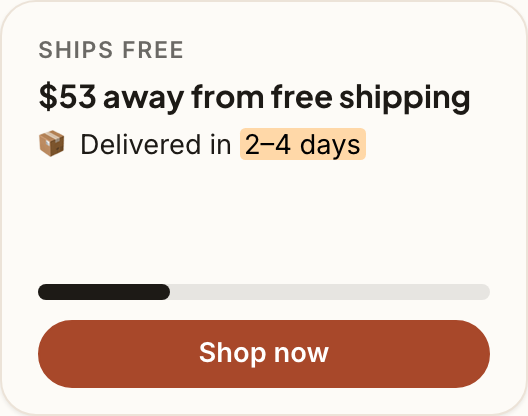
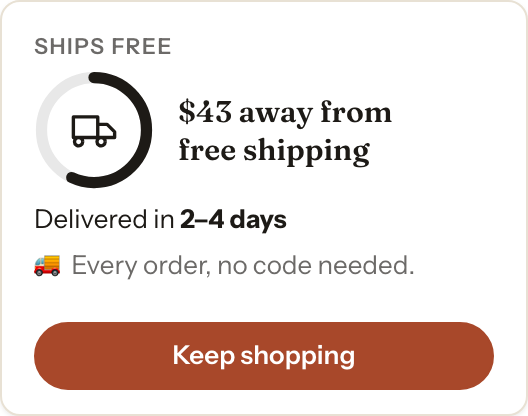
| Announcement line | Bar app | In a drawer | |
|---|---|---|---|
| Knows the cart | No | Yes | Yes |
| Covers the page | No | A top bar can | No |
| Seen on arrival | Yes | Yes | When the drawer opens |
| More than one goal | No | Depends on the app | Up to three on one bar |
Install Promo Drawer from the Shopify App Store and turn on its app embed in your theme editor; Getting started walks through both. Then:
Or ask Shopify’s Sidekick: “Make me a drawer with a free shipping card for orders over $75.” It builds the drawer for you to review and save. See Sidekick.
The free shipping card, schedules and page targeting are on Basic and Pro, each with a 30-day free trial. The Free plan has announcement, image and follow cards on your home page.
No. It shows progress toward the free shipping you set up in Shopify, as a shipping rate or a free shipping discount. Without one of those, checkout charges shipping whatever the card says.
Yes. The card shows how far the cart is from your amount and updates as the shopper adds to it.
Yes. The Milestones layout shows up to three goals on one bar. Each reward still has to be set up in Shopify.
Yes. On Basic and Pro, a drawer can show on chosen page types, URLs or devices.
Any app adds some code to your pages. Promo Drawer’s script and stylesheet load after your page, and each card type is its own small file, so a drawer without a free shipping card loads none of its code. See Speed and your storefront.
Schedule a Shopify sale so the discount and the announcement both start and end on time, without staying up to flip switches.
6 min read · Updated Oct 18, 2026
Run more than one offer at a time: make the discounts work together, then show them side by side without stacking popups.
7 min read · Updated Oct 18, 2026
Cyber Monday is November 30, 2026. Hand over from Black Friday, set up a Monday-only offer in Shopify, and keep the deadline honest.
6 min read · Updated Oct 18, 2026
Free to start. No code to install. A 30-day free trial on Basic and Pro.