How to show several promotions at once on Shopify
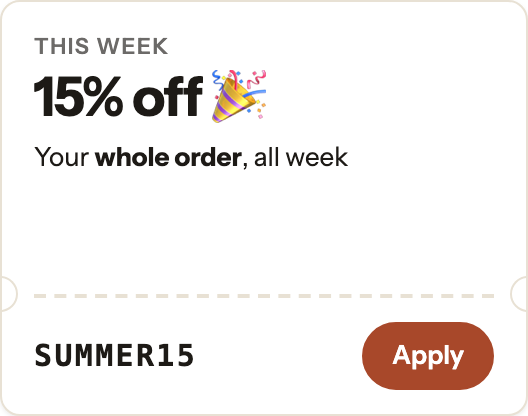
Run more than one offer at a time: make the discounts work together, then show them side by side without stacking popups.
8 min read · Updated Oct 18, 2026
Guide
A sale has two parts: the discount, and the message that tells shoppers about it. Shopify can start and end the discount for you. The message is usually what someone has to change by hand at midnight. Here’s how to schedule both.
Every Shopify discount has Active dates. Go to Discounts, open or create the discount, and in Active dates pick the start date. Click Set end date to choose when it ends. Without an end date, a discount doesn’t expire; for a one-day sale, the Help Center says to pick the same day for both. This works for automatic discounts and discount codes alike. See Amount off discounts.
A product or collection can be scheduled to appear on your online store: in its Publishing section, click the calendar beside Online Store, then Schedule publishing. A product must be Active for it to publish. Pages and blog posts take a visibility date instead. See Future publishing.
Shopify’s Launchpad app schedules a whole event: price changes, theme changes, product releases and discounts, switched on and back off. It’s available only to stores on Shopify Plus. See Launchpad.
On most plans, the message about the sale is the part left to you. An announcement bar or a banner in your theme says whatever it said last, so “30% off ends Sunday” stays up on Monday until someone edits it, and the sale’s announcement has to go up the moment it starts.
There are three common ways to handle it:


Install Promo Drawer from the Shopify App Store and turn on its app embed in your theme editor; Getting started walks through both. Then:
Or ask Shopify’s Sidekick: “Make me a Black Friday drawer from November 27 to November 30, with 30% off using BF30 and a countdown to the end.” It builds the drawer for you to review and save. See Sidekick.
Scheduling, page targeting, the countdown card and the discount code card are on Basic and Pro, each with a 30-day free trial. The Free plan has one drawer with announcement, image and follow cards on your home page.
No. The discount and any price changes are Shopify’s. Promo Drawer shows the sale, with its code and countdown, on the dates you set.
Your store’s, the same one Shopify uses for discounts. A sale that starts at midnight starts at midnight in your time zone for every shopper.
The one higher in your Drawers list shows. Put the sale drawer at the top and it wins for its dates; when it ends, the next one down shows again.
Scheduling is on Basic and Pro. On the Free plan, your one drawer shows on your home page until you turn it off.
Run more than one offer at a time: make the discounts work together, then show them side by side without stacking popups.
8 min read · Updated Oct 18, 2026
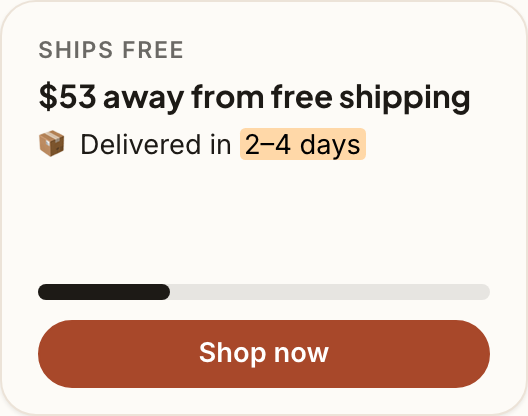
Set up free shipping over an amount in Shopify, then show shoppers how close their cart is, without covering the page.
8 min read · Updated Oct 18, 2026
Cyber Monday is November 30, 2026. Hand over from Black Friday, set up a Monday-only offer in Shopify, and keep the deadline honest.
6 min read · Updated Oct 18, 2026
Free to start. No code to install. A 30-day free trial on Basic and Pro.