
How to auto-apply a discount code on Shopify
Shareable discount links, automatic discounts, or an Apply button on the page: three ways to get a discount onto the cart without typing a code.
6 min read · Updated Oct 2, 2026
Guide
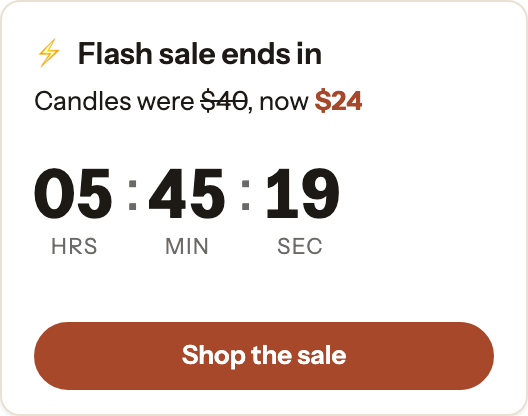
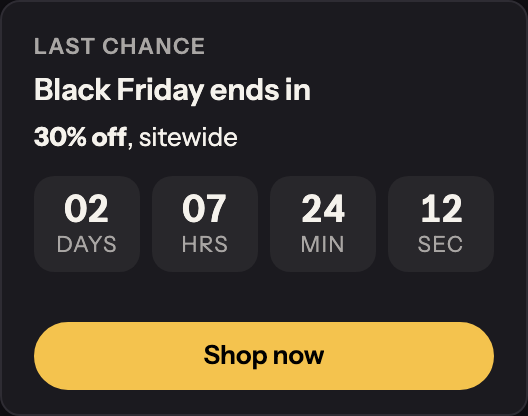
A countdown works when the deadline is real and the timer doesn’t get in the way. Here are the three ways to add one to a Shopify store, how to choose, and how to set one up in a drawer that never covers the page.
Some themes come with a countdown or timer section. To check yours, open Online Store → Themes → Customize, click Add section (or Add block), and search for “countdown” or “timer”.
It costs nothing and it’s on screen as soon as a shopper lands. But it sits in the page where you placed it, you set its end date by hand, and it doesn’t know when your discount ends.
Apps can add a timer bar across the top of every page, or a popup with a timer in it. A bar either pushes the page down or sits over it; a popup covers what the shopper came to see until they close it. Both are hard to miss, which is the point and the cost.
The timer sits in a slide-out drawer with the rest of your offers: the sale, the code, the products. A button waits at the edge of every page, and nothing covers the page until a shopper taps it. This is how PromoDrawer works.
The trade: shoppers see the timer when they open the drawer, not the moment they land. If you need a deadline on screen the instant someone arrives, a theme section is the better fit, and the two work well together.
| Theme section | Bar or popup app | In a drawer | |
|---|---|---|---|
| Covers the page | No | A popup does; a bar can | No |
| Seen on arrival | Where you place it | Yes | When the drawer opens |
| Ends with the sale | Set by hand | Depends on the app | Can follow the drawer’s schedule |
| Code beside it | Typed into the text | Depends on the app | A code card shoppers apply in one tap |
Install PromoDrawer from the Shopify App Store and turn on its app embed in your theme editor; Getting started walks through both. Then:
Or ask Shopify’s Sidekick: “Make me a summer sale drawer with 15% off using SUMMER15, and a countdown to Sunday.” It builds the drawer for you to review and save. See Sidekick.
The countdown card, discount code card, schedules and page targeting are on Basic and Pro, each with a 30-day free trial. The Free plan has announcement, image and follow cards on your home page.
Any app adds some code to your pages. PromoDrawer’s script and stylesheet load after your page, and each card type is its own small file, so a drawer without a countdown loads no countdown code. See Speed and your storefront.
Not in PromoDrawer. Every option counts to a real moment: a date, the end of a schedule, or a daily cutoff that’s the same for everyone.
You choose: the card hides, shows zeros, or shows your own message. When the countdown follows the drawer’s schedule, the drawer ends at the same moment.
Yes. On Basic and Pro, a drawer can show on chosen page types, URLs or devices, so the timer appears only where the offer applies.
Shareable discount links, automatic discounts, or an Apply button on the page: three ways to get a discount onto the cart without typing a code.
6 min read · Updated Oct 2, 2026
A week-by-week checklist for Black Friday and Cyber Monday 2026, from choosing your offer in October to reading the results in December.
21 steps · Updated Oct 2, 2026
Free to start. No code to install. A 30-day free trial on Basic and Pro.